Upload to Flickr

October 31st, 2009

Quick way

To get Shutter to upload to Flickr, you can install a program called Postr by Ross Burton – and then just use ScreenshotOpen with to upload!

Guide

  1. Install postr
    1. Ubuntu – download and install this package (don’t use Ubuntu’s version in repositories, it’s slightly broken)
    2. ArchLinux: AUR package page
    3. Fedora: PackageDB page
    4. Mandriva: rpm2find page
    5. OpenSUSE: build service search page
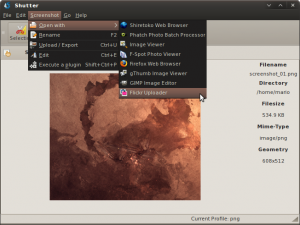
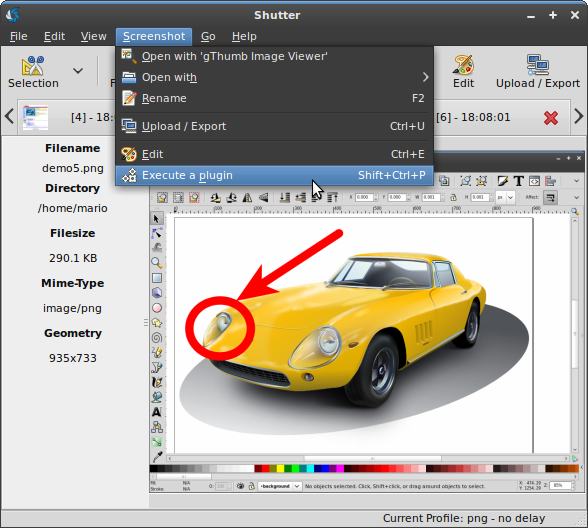
  2. Use ScreenshotOpen with and select Flickr Uploader

    postr_select

    Select Flickr Uploader from the dropdown list.

  3. That’s it!

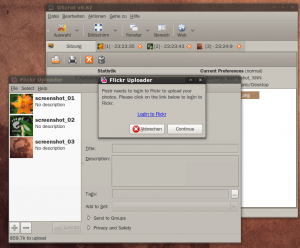
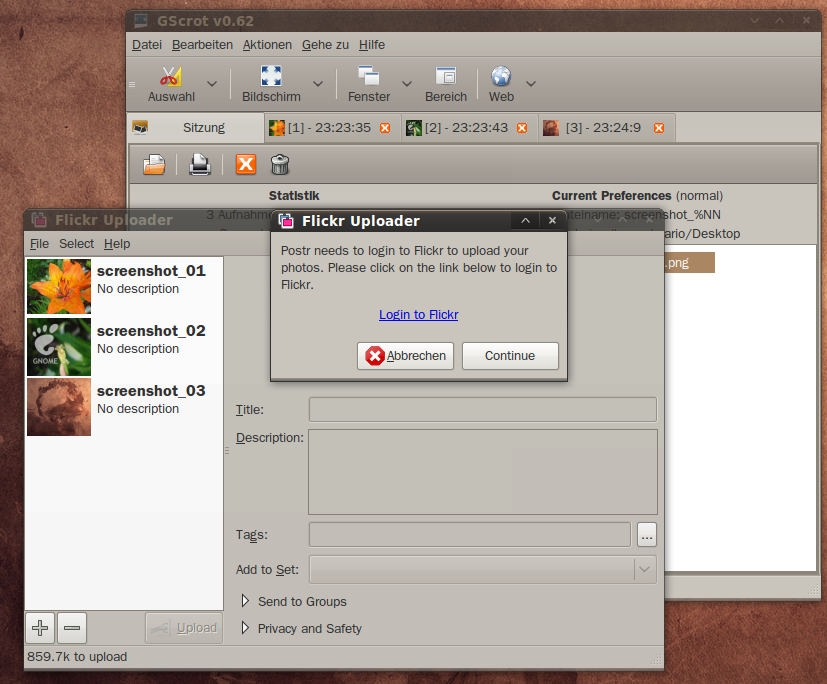
    As you can see all three screenshots were exported to Postr. You can now just use Postr to upload.

Share and Enjoy:
  • Digg
  • Slashdot
  • Reddit
  • del.icio.us
  • Google Bookmarks
  • Identi.ca
  • StumbleUpon
  • Twitter
  • LinkedIn
  • Facebook
  • Mixx
  • Ping.fm
  • Netvibes
  1. krazybuntu
    May 31st, 2009 at 20:13 | #1

    This is the most useful application that i have on Linux right now ! ! !

  2. October 11th, 2009 at 09:51 | #2

    Thanks for that. Really, really helpful !

  3. February 16th, 2010 at 22:16 | #3

    I have postr installed, but it doesn’t show up in shutter. Are there instructions on how to make it show up?

  4. Romario
    February 17th, 2010 at 21:05 | #4

    @Doug Whitfield
    Are you using ubuntu? Did you download the version mentioned above or installed it via package manager?

  5. February 17th, 2010 at 21:26 | #5

    @Romario No. I am using Fedora, but should it matter? Shouldn’t there be generic instructions for adding a new application to which you’d like to send files?

  6. Vadim P.
    February 18th, 2010 at 19:44 | #6

    Unfortunately it does, every distro does things “their own way” and it’s not feasible to test every single one of them for us to see which way is it on that specific distro. Should the user would like to use it, and finds a way to make it work on that OS, we wouldn’t mind adding the instructions here.

    postr is a third-party application and is thus outside of our domain.

  7. February 18th, 2010 at 20:16 | #7

    um, why doesn’t someone post Ubuntu instructions and I’ll do it on Fedora? Applications are all basically the same. I use both distros and I’ve never had a problem converting instructions except for very deep programs such as GNOME or X. Installation/version # is the only difference and I can handle that either place. I assure you that if someone gave Ubuntu instructions for adding things to send to, I could make it happen in Fedora. Probably some conf file. I’ll post if I ever care to figure it out, which I probably won’t.

    NOTE: This question has nothing to do with postr. If I wanted to add foo or bar or programX to that list, it would be the same question.

  8. Vadim P.
    February 18th, 2010 at 22:10 | #8

    The instructions are right here on this page.

    Are you doing this in Ubuntu and it’s not working as intended?

  9. February 18th, 2010 at 22:19 | #9

    @vadim no, the instructions are how to upload if Postr is already on the list. I am asking how to edit the list. Please stop responding to my questions if you don’t know the answers or what I’m asking…or at least ask for clarification. I appreciate your attempts to help, but you aren’t and you are wasting both of our time.

  10. Vadim P.
    February 19th, 2010 at 03:59 | #10

    I do know the answer and I do know what you’re asking… and I already answered.

    Lets make this clear because you don’t seem to get it: follow the instructions, uploading to flickr works. These are complete instructions. You do not need to edit the list, because the list is auto-generated. That is why that part is missing.

    So, I do know what I’m talking about, and if it’s not working for you in Fedora, then that’s unfortunate, because the following instructions haven’t been tested. I asked to confirm that you are using the instructions for any of the listed distros here, instead you ask how to edit the list. It’s nice to be smart, but it’s even nicer to help people trying to help you.

  11. March 6th, 2010 at 02:07 | #11

    @vadim it’s still pretty clear you do not understand what I’m asking. The instructions for what I am asking about are emphatically not on this page. As I mentioned before, the instructions on this page are for sending pictures to postr, if it is on your list. These instructions are quite good for that! Below I have linked to a screenshot to prove postr does NOT show up in the list. You can see that I uploaded the picture using postr, so it is not a problem with postr.

    http://www.flickr.com/photos/dawhitfield/4409190745/

    So, I will repeat my question for clarity. How do I edit the list of programs to which Shutter will send pictures?

  12. Romario
    March 7th, 2010 at 13:20 | #12

    @Doug Whitfield
    You need to check postr’s .desktop file. Usually its path is: /usr/share/applications/postr.desktop
    There are several key/value pairs in the file. You need to check if there is a ‘MimeType’ key and the related values. In the latest version of ubuntu the values look like this:

    ——snip—–
    MimeType=image/bmp;image/gif;image/x-fits;image/pcx;image/x-portable-anymap;image/x-portable-bitmap;image/x-portable-graymap;image/x-portable-pixmap;image/x-sgi;image/x-tga;image/x-xbitmap;image/x-xwindowdump;image/tiff;image/jpeg;image/x-psd;image/png;image/x-icon;image/x-xpixmap;image/svg+xml;
    ——snip—–

    As you can see ‘image/png’ is listed here. If there is no such value you need to add it (and execute ‘update-desktop-database’ via terminal with root privileges afterwards).

    Shutter uses a gnome library to access those .desktop files and list all applications that are registered to a specific mime-type. There is no way to edit the list manually (usually you should not need it).

    The reason why I asked if you are using ubuntu or not: The postr package in older versions of ubuntu was broken (no ‘MimeType’ key provided in the .desktop file).

    Regards
    Mario

  1. April 1st, 2009 at 02:07 | #1
  2. October 20th, 2009 at 11:26 | #2