Screenshots
Well, Shutter at its best: grabbing screenshots 😉
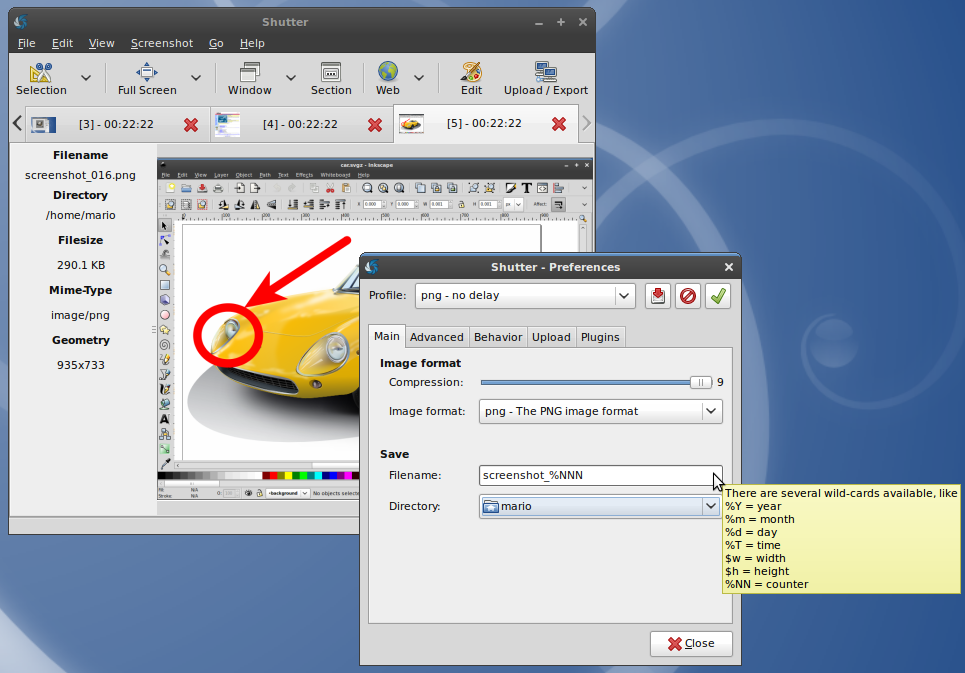
- Define an auto-generated filename using wildcards
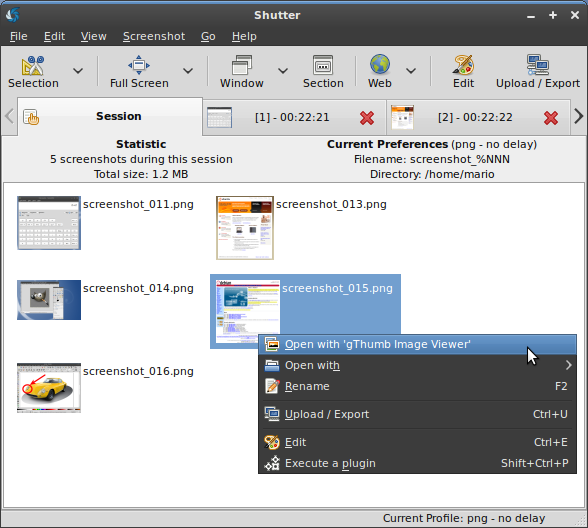
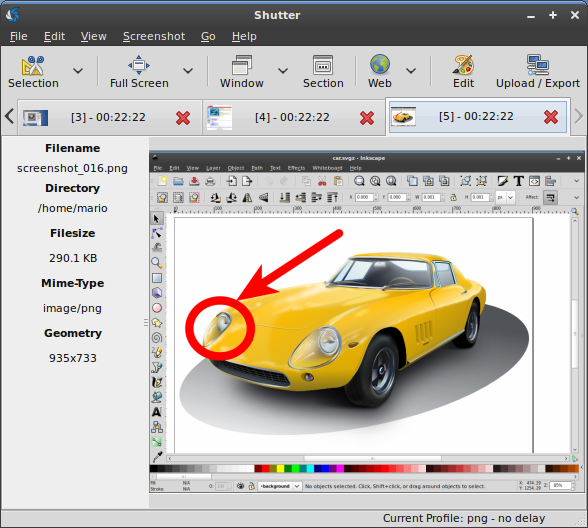
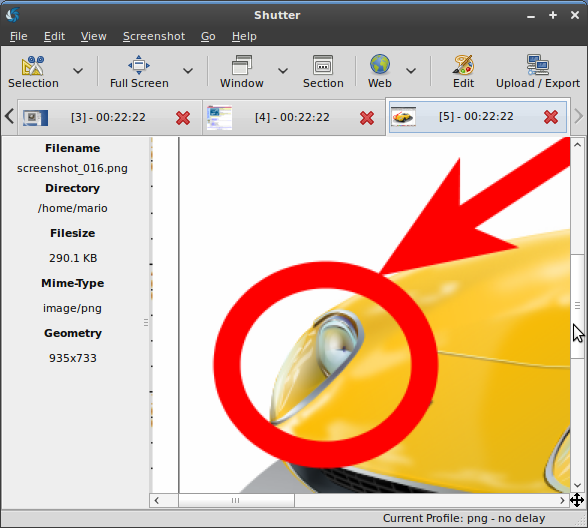
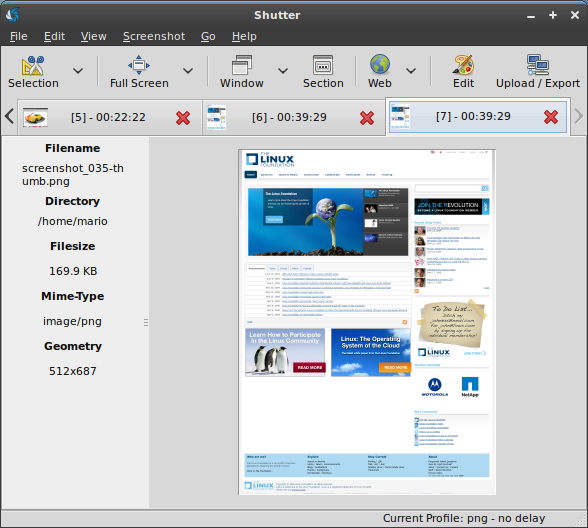
- All screenshots are accessible via a session tab…
- …and via a single tab for each capture
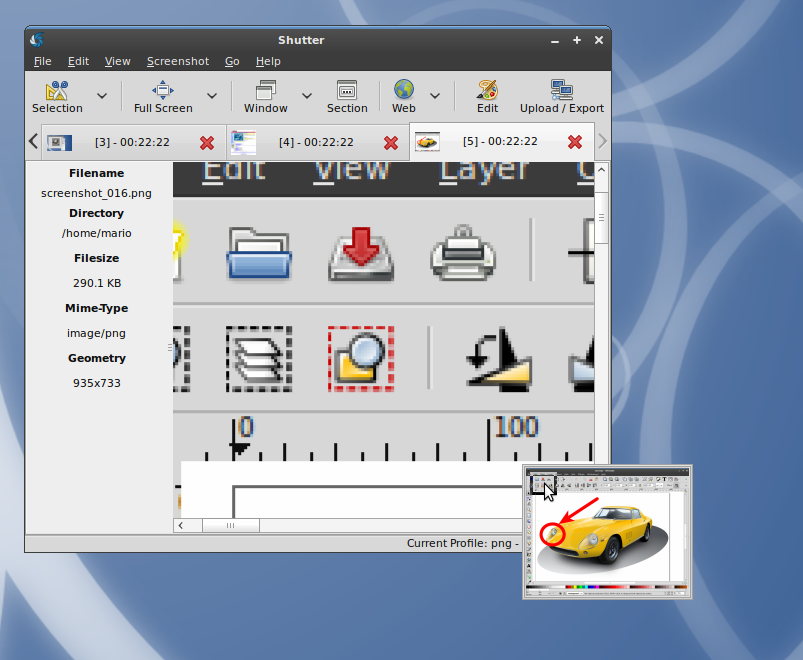
- Each tab provides a small navigator window
- You can zoom in and out to have a detailed look at your capture
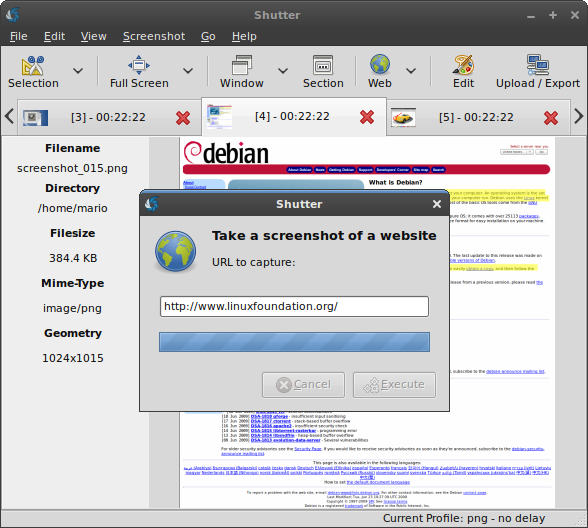
- Capture a webpage by simply entering the desired URL
- The webpage will be captured full size
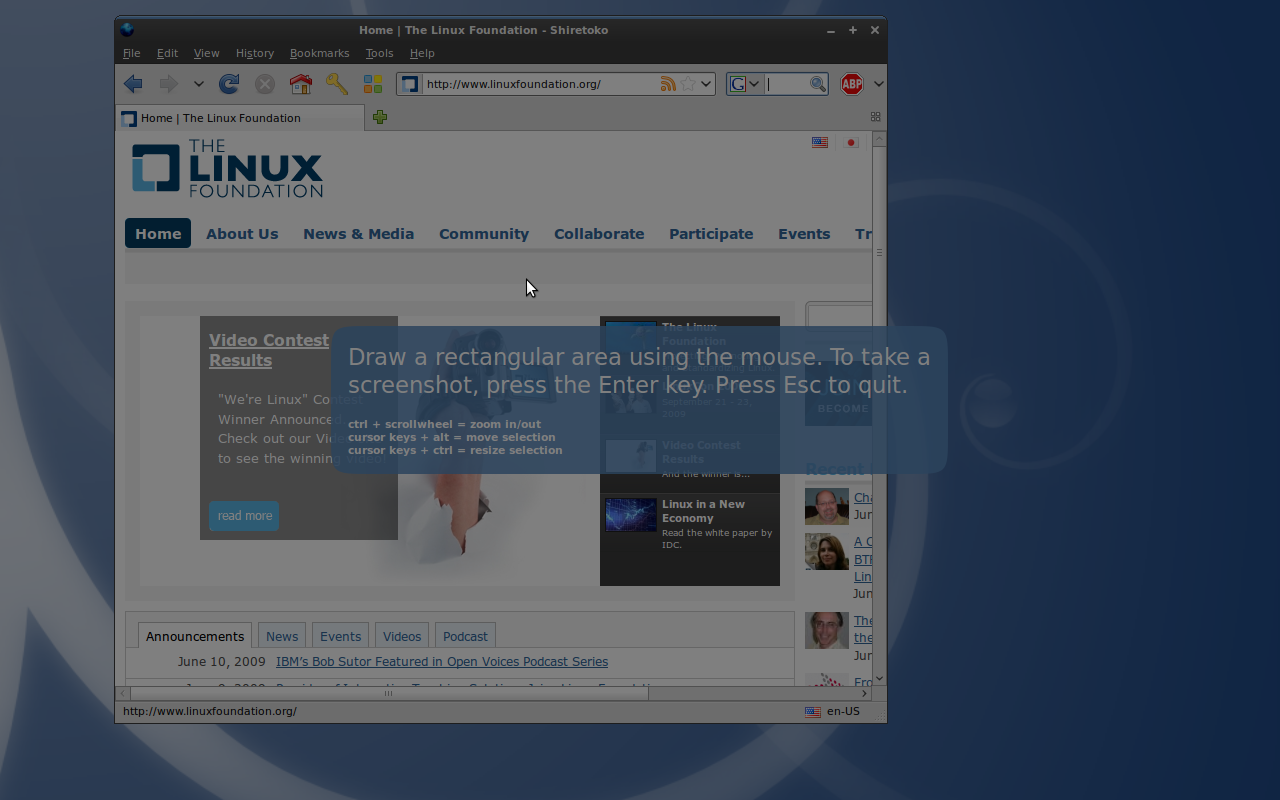
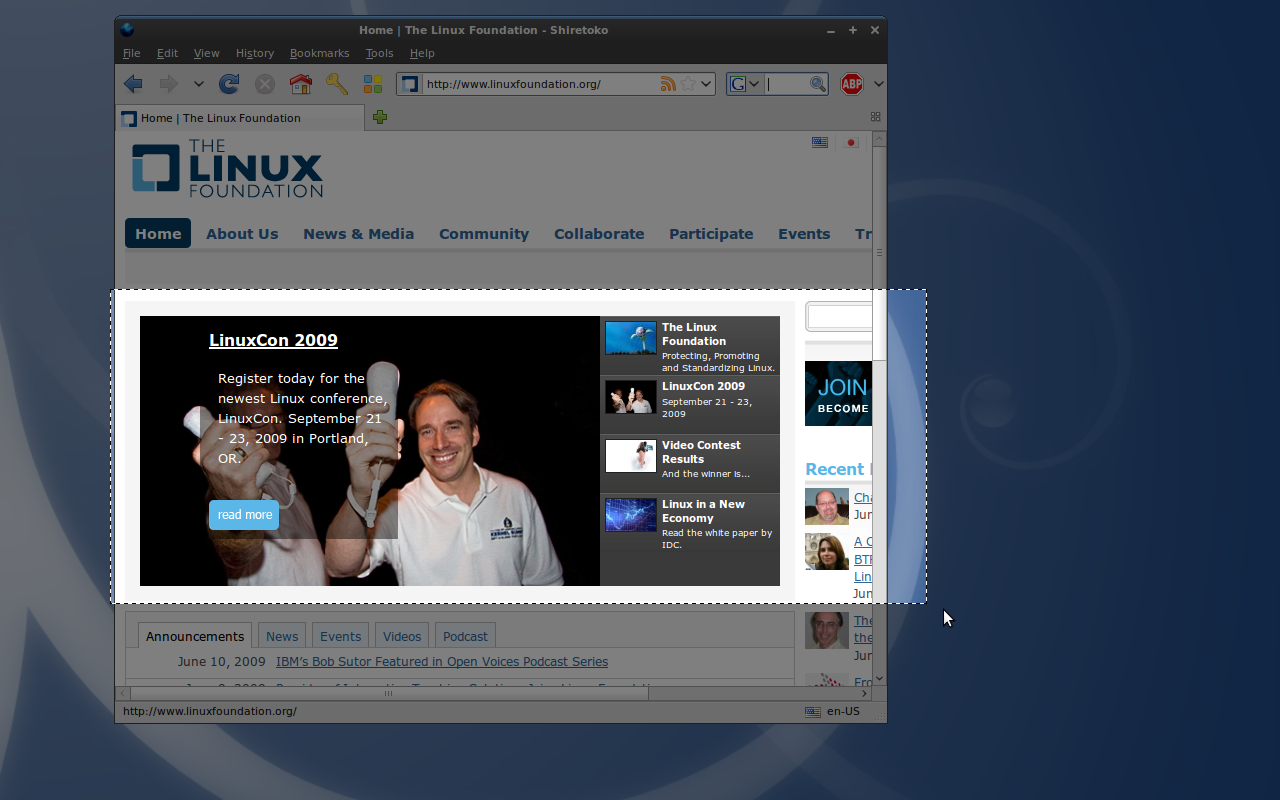
- Shutter offers a zoomable selection tool to capture an arbitrary region of the screen
- You can resize and move the selection until you finally want to capture the selected region
- Showing the zoomable interface of the advanced selection tool
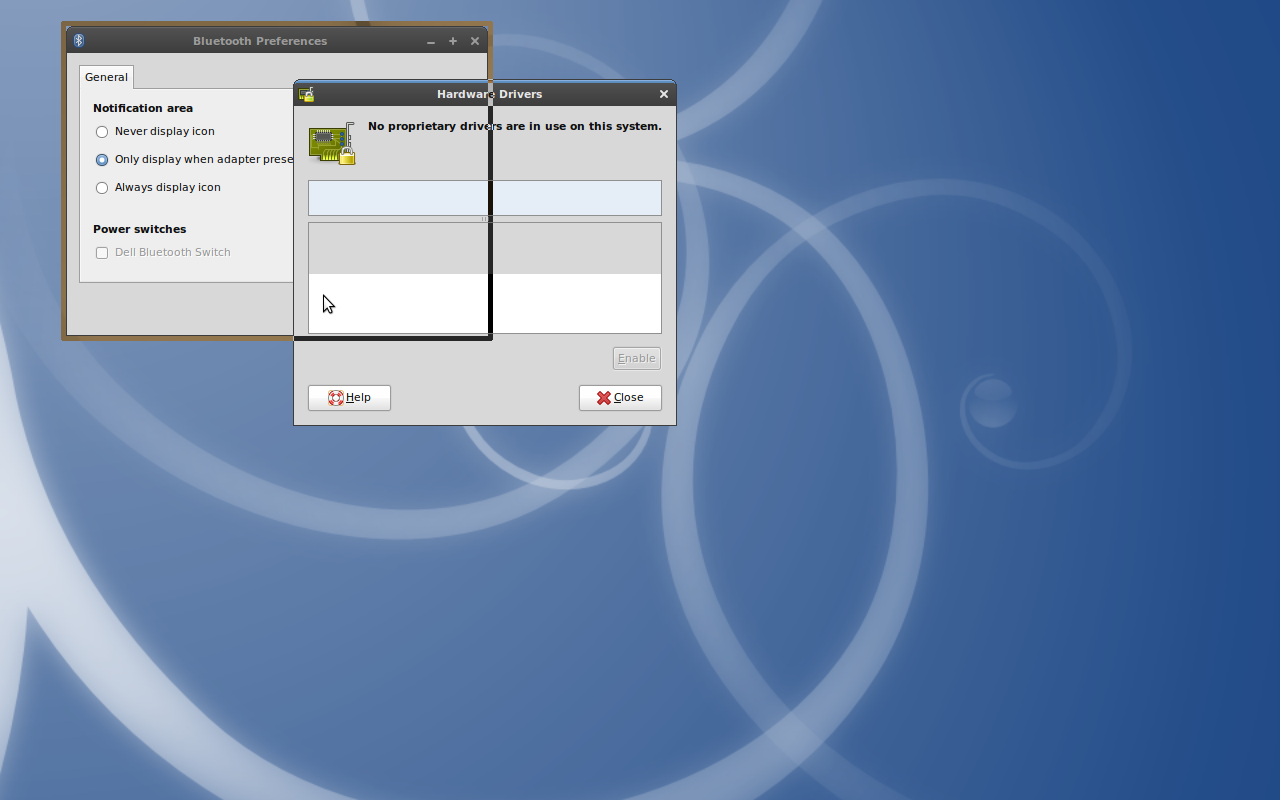
- Shutter allows you to select a window by simply clicking on it
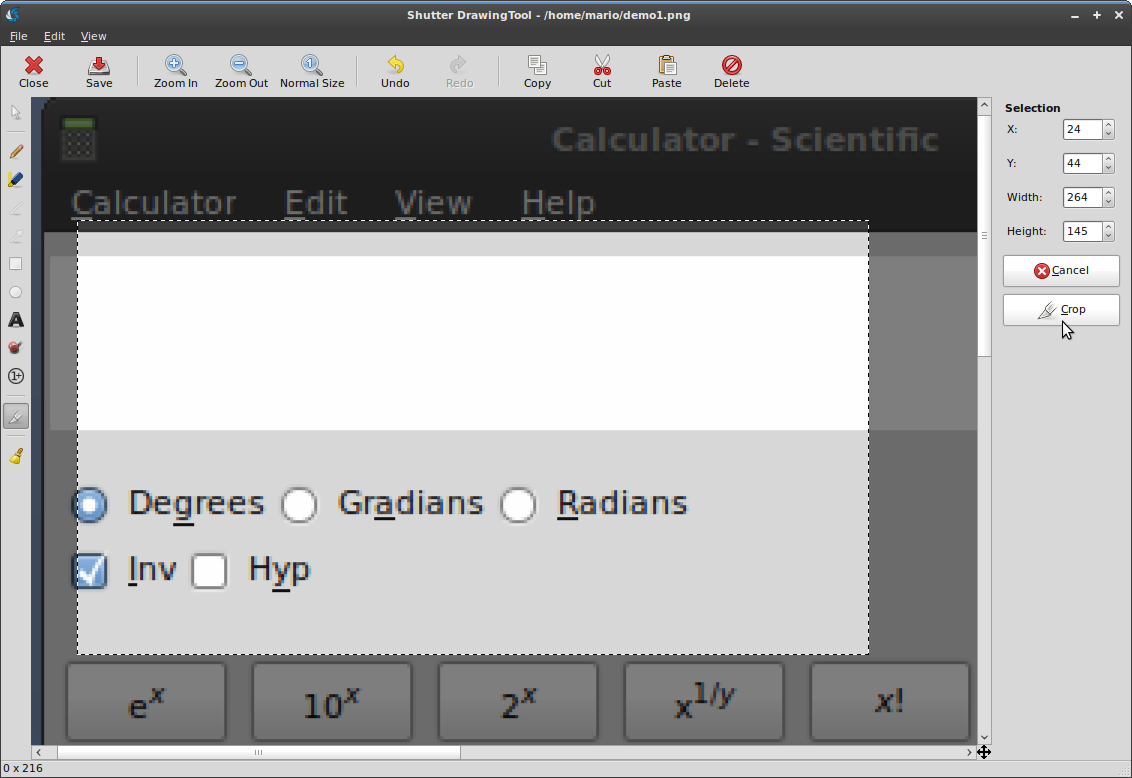
- You can even select subsections of a parent window…
- …to select detailed portions of a window, like buttons and text areas for example
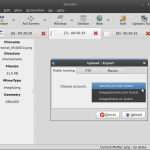
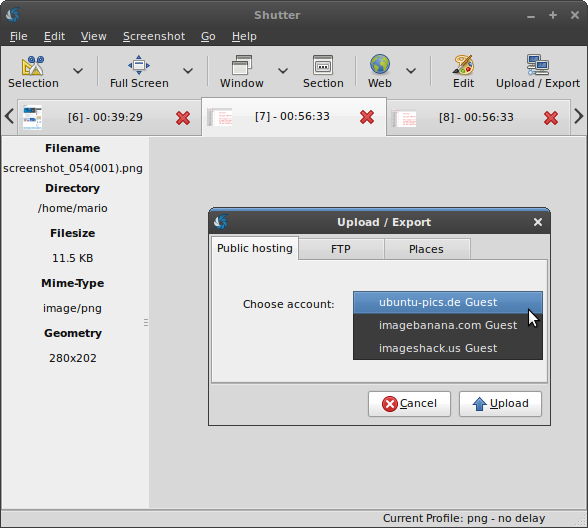
- You can choose among different image hosters or traditional FTP to upload your screenshots
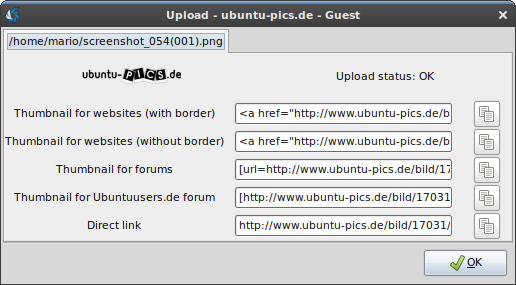
- Shutter provides you automatically with useful links to your uploaded captures
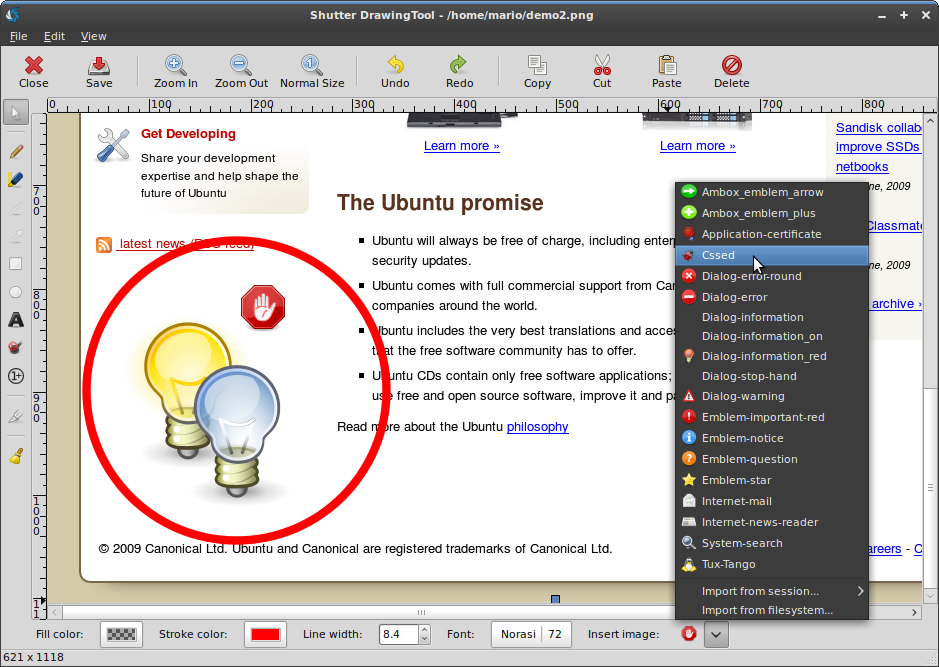
- Shutter comes with an existing collection of nice graphics but you can import custom files as well
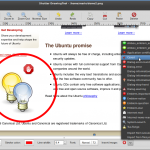
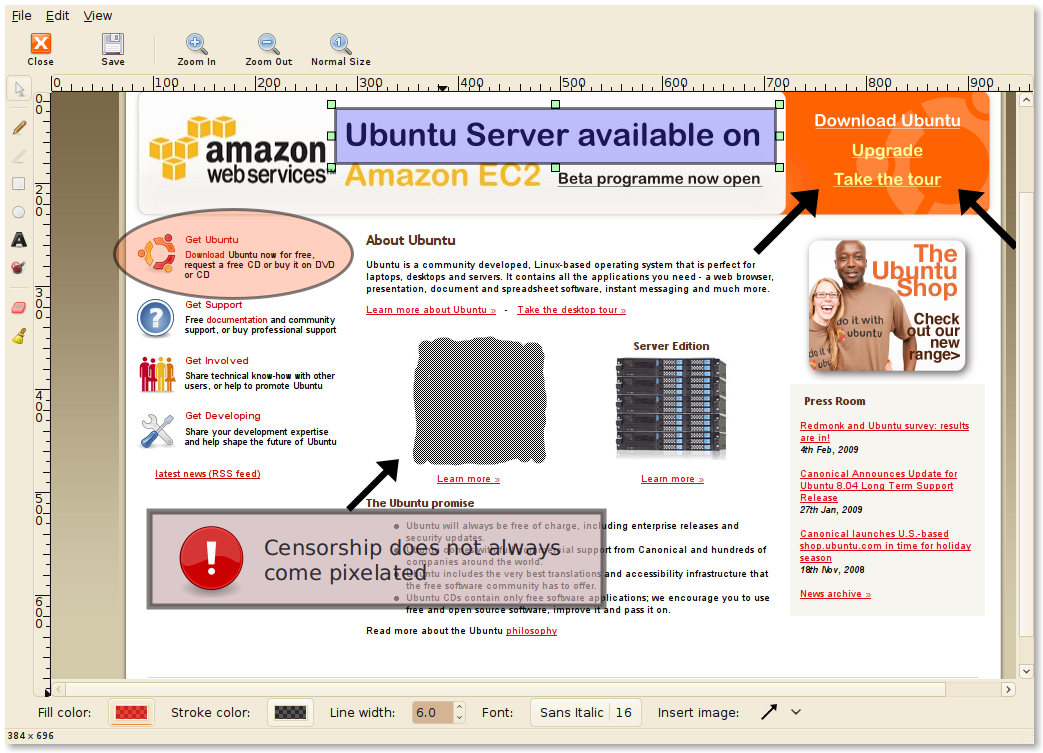
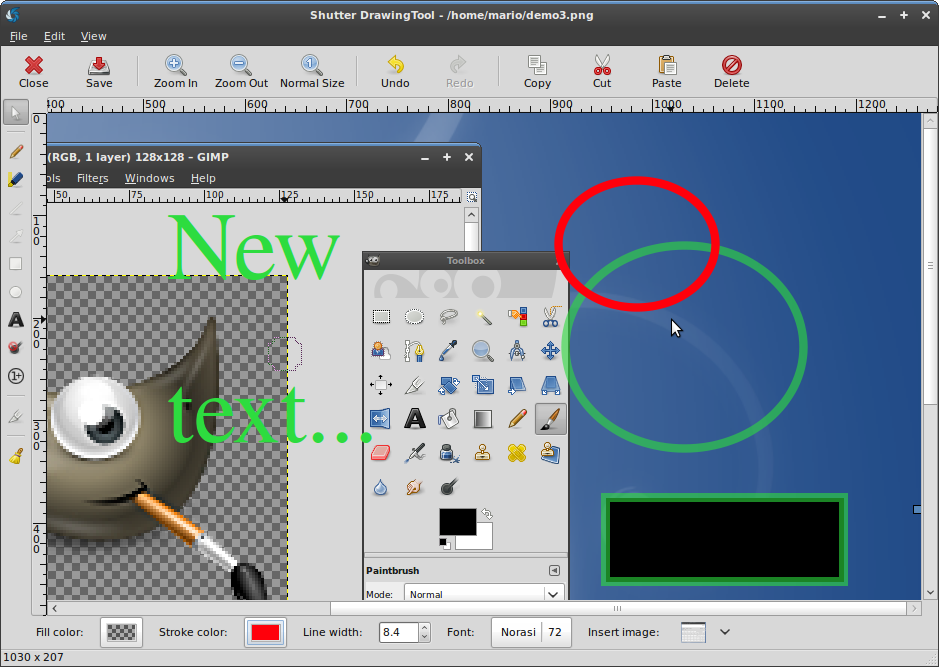
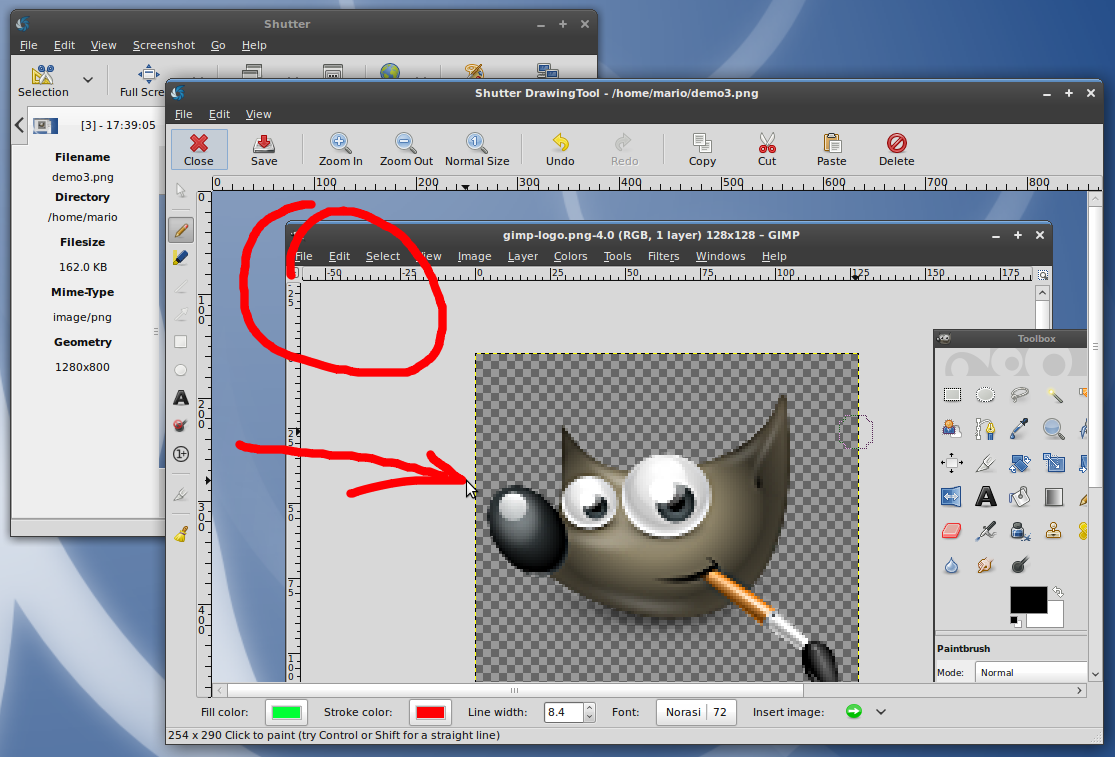
- Showcasing Shutter’s image editing abilities
- You can add primitives, like rectangles, ellipses etc., and text…
- …or simple highlight some parts of your screenshot using the freehand tool
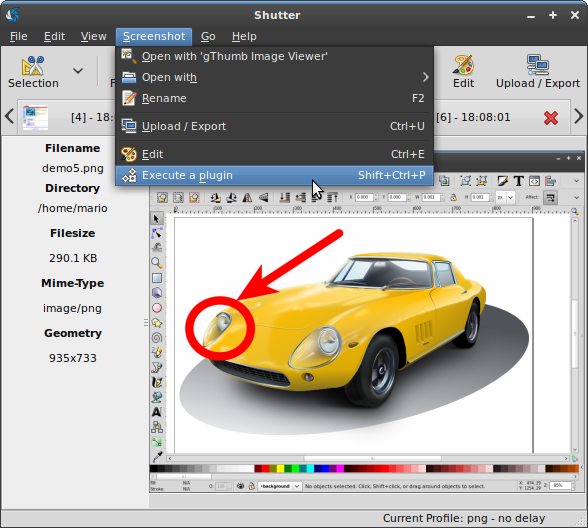
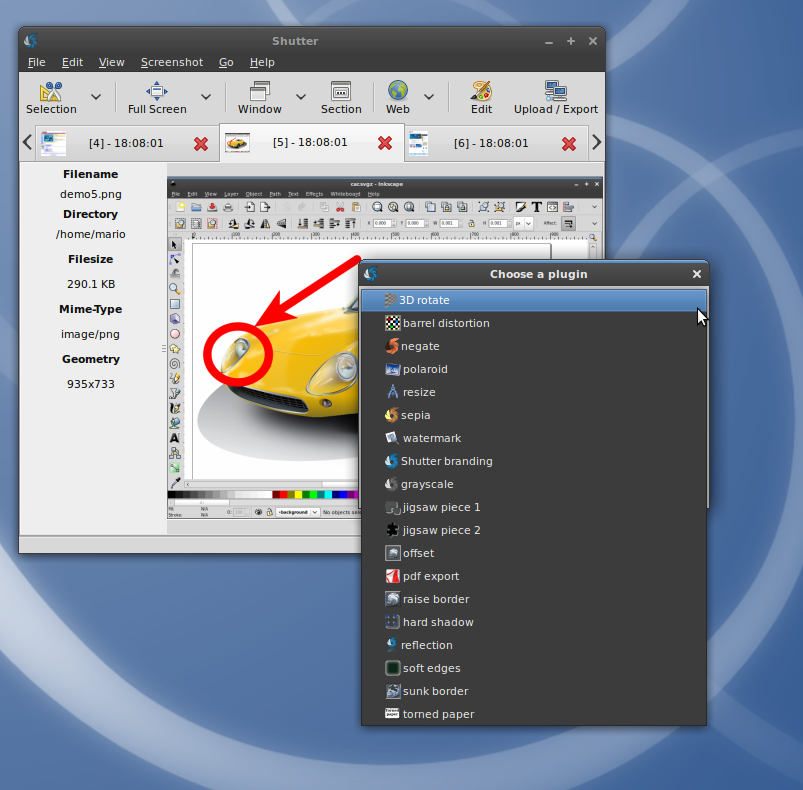
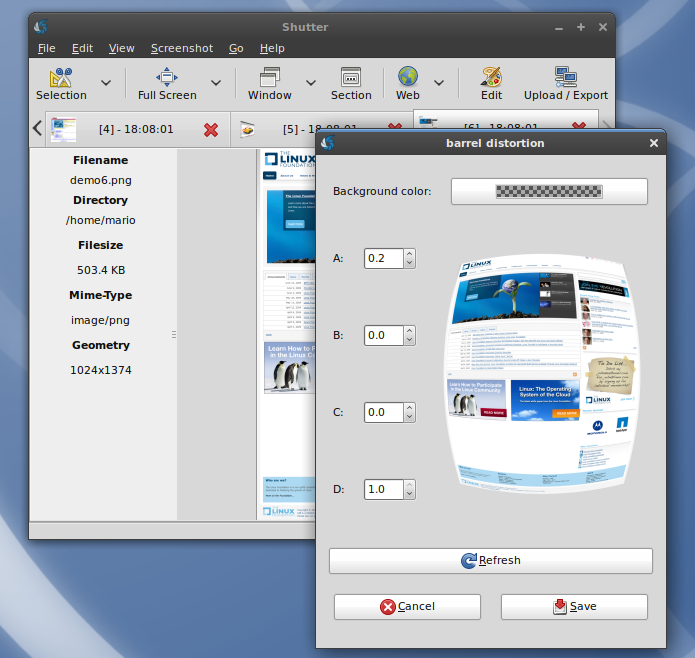
- Shutter offers nice plugins as well
- There are a lot of plugins shipped with Shutter – most of them are adding nice effects to your captures
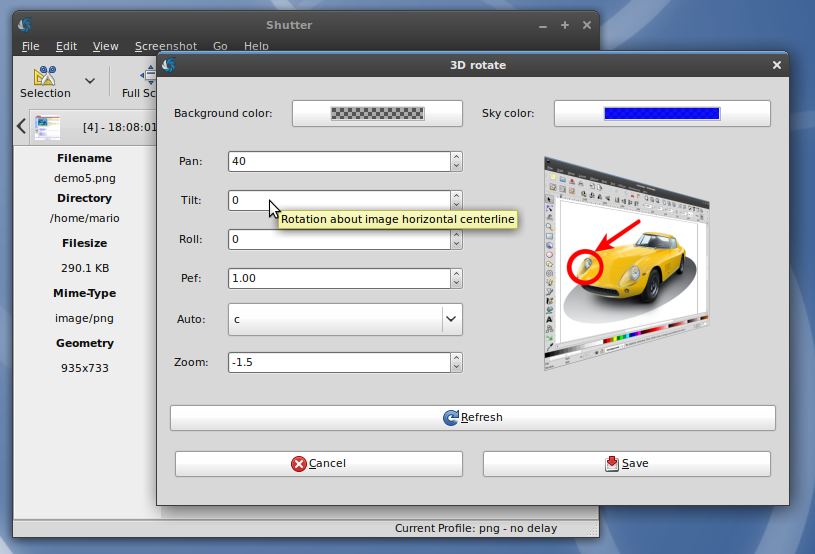
- One of the most recent plugins is ‘3D rotate’
- Here is another example of Shutter’s plugins – apply a nice ‘fish-eye’-effect
There are even more Screenshots available showcasing the different features of Shutter:


Fantastic software.