Shutter as default
To configure Shutter as the default tool to take screenshots with when you press PrtSc or Alt+PrtSc, here’s what you need to do:
![]() |
![]() |
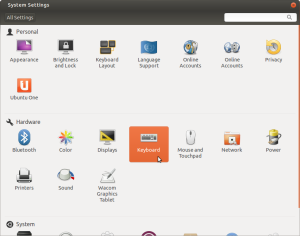
- Go to System Settings ▸ Keyboard
- Switch to the Shortcut tab and add a new custom shortcut
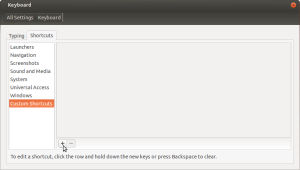
- Enter a Name (e.g. Shutter) and a Command (e.g. shutter -f)
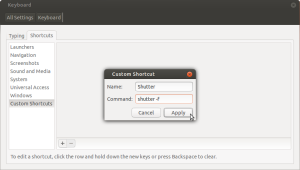
- Click the new row and hold down the new keys in order to add/edit the accelerator
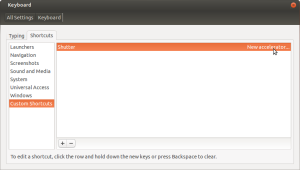
- That’s it! Now the usual PrtSc keybinding will use Shutter to take the screenshots.

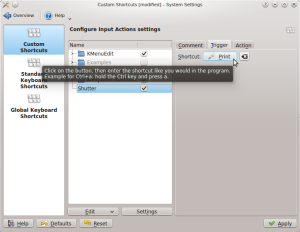
- Go to System Settings ▸ Shortcuts and Gestures
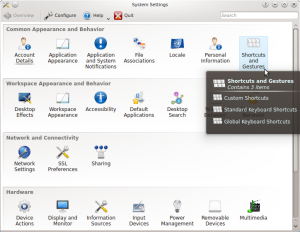
- Create a new global shortcut (right-mouse click) and select Command/URL
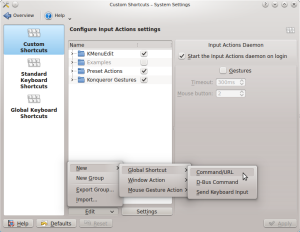
- You can now edit the associated Action …
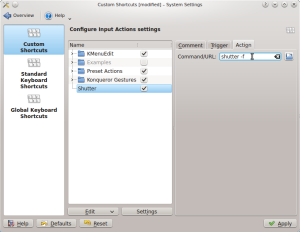
- … and Trigger
- That’s it!
- Go to Settings ▸ Keyboard
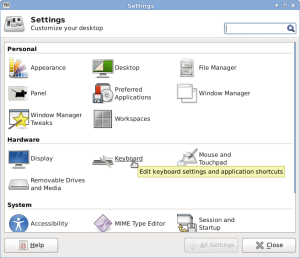
- Click on the Add-Button to create a new shortcut
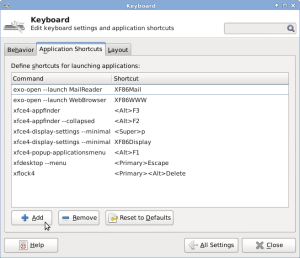
- Enter a command in the next dialogue (e.g. shutter -f)
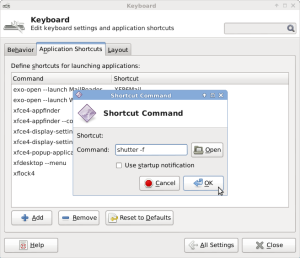
- Click the new row and hold down the new keys in order to add/edit the shortcut. That’s it.
- LXDE does not provide any GUI to manage global shortcuts yet. Please see the instructions here.
53 Comments
Trackbacks/Pingbacks
- Linux Mint 14中Shutter快捷键设置无效 | northcamel - [...] Linux Mint 14中的截图软件Shutter快捷键设置无效,而且在Cinnamon的Keyboard中自定义也无效,这让人用起来好“蛋疼”,不过越到的问题早已经有人遇到,并给出了解决方法,通过分析,这个快捷键失效应该是Cinnamon的原因,而不是Shutter。在Shutter网站的设置中,kiweegie给出了解决办法(kiweegie根据了electrickite的帖子),解决的思路是“Basically re-enable the old gnome keyboard settings which DO allow you to override gnome-screenshot tool with custom ...
- The Power Base Integrating Shutter With KDE 4.7 - [...] what is the use of launching KSnapshot when you press prt scr? A guide for this already exists here, ...


Solution found for Mint 14 Cinnamon key bindings.
There would appear to be a bug in the way cinnamon custom keyboard shortcuts work which I could not get to work editing the cinnamon keyboard shortcuts via the GUI or via command line using dconf-editor or gconf-editor.
A bit more google searching led me to a post by electrickite at this link:
http://forums.linuxmint.com/viewtopic.php?f=208&t=117585&start=20#p655476
All kudos (and heartfelt thanks) to elextrickite, I include his instructions below in full to make it easier for shutter specific searches.
Basically re-enable the old gnome keyboard settings which DO allow you to override gnome-screenshot tool with custom key bindings for shutter.
create a new file
$ sudo vi /usr/share/applications/keyboard-settings.desktop
Copy and paste this into the file and save
[Desktop Entry]
Name=Keyboard
Comment=Change keyboard settings
Exec=gnome-control-center keyboard
Icon=preferences-desktop-keyboard
Terminal=false
Type=Application
StartupNotify=true
Categories=GNOME;GTK;Settings;HardwareSettings;X-GNOME-Settings-Panel;
OnlyShowIn=GNOME;Unity;
X-GNOME-Bugzilla-Bugzilla=GNOME
X-GNOME-Bugzilla-Product=gnome-control-center
X-GNOME-Bugzilla-Component=keyboard
X-GNOME-Bugzilla-Version=3.4.2
X-GNOME-Settings-Panel=keyboard[Desktop Entry]
Name=Keyboard
Comment=Change keyboard settings
Exec=gnome-control-center keyboard
Icon=preferences-desktop-keyboard
Terminal=false
Type=Application
StartupNotify=true
Categories=GNOME;GTK;Settings;HardwareSettings;X-GNOME-Settings-Panel;
OnlyShowIn=GNOME;Unity;
X-GNOME-Bugzilla-Bugzilla=GNOME
X-GNOME-Bugzilla-Product=gnome-control-center
X-GNOME-Bugzilla-Component=keyboard
X-GNOME-Bugzilla-Version=3.4.2
X-GNOME-Settings-Panel=keyboard
# Translators: those are keywords for the keyboard control-center panel
Keywords=Shortcut;Repeat;Blink;
X-Ubuntu-Gettext-Domain=gnome-control-center-2.0
# Translators: those are keywords for the keyboard control-center panel
Keywords=Shortcut;Repeat;Blink;
X-Ubuntu-Gettext-Domain=gnome-control-center-2.0
You’ll now see a *new* keyboard menu here
menu > system tools > system settings > hardware section
Click on screenshots section and disable the existing entries (for gnome-screenshot) then click on custom shortcuts and add in your preferred selection of shutter commands.
Thanks for your help. I am sure it is useful for other readers.
Thank you for your information about this problem. And I follow what your post and solve my shutter shortcuts problem in Linux Mint 14.
Has anyone managed to set custom keybindings for Mint 14 Cinnamon for the various shutter commands?
PrtSc button seems hard coded to use gnome-screenshot but am happy to use an alternative key binding and leave PrtSc alone.
I’ve tried via Menu > Preferences > Keyboard > Keyboard shortcut tab to add custom shortcuts as follows:
shutter -f Shutter full screen Ctrl+Shift+f
shutter -s Shutter selection Ctrl+Shift+s
shutter -w Shutter window Ctrl+Shift+w
shutter -t Shutter tooltip Ctrl+Shift+t
This *did* work when I initially setup but after a restart they don’t work. I’ve tried recreating them but no dice. I can’t see anything online about this which helps. Older versions of Mint you could use gconf-editor to amend keys in /apps/metacity/global_keybindings but this key set is not showing under mint 14.
Appreciate this is likely a Cinnamon rather than Shutter issue but hoping someone with a solution may see this post here.
thanks all.
Hi,
since 1-2 weeks Shutter does not work anymore on my system (LinuxMint 13 Maya Cinnamon). I do not know why. It just stopped working and gnome-screenshot has taken control.
When I take a look in gnome-control-center, key shortcuts there are duplicate entries for taking a snapshot and taking a window snapshot. I have n idea how this happened. See also http://forums.linuxmint.com/viewtopic.php?f=208&t=118426
Has someone an idea how to fix this?
Tnx in advance,
Enkidu
try this step http://www.panduaji.com/2012/09/shutter-as-default-on-ubuntu-1204.html
The newer Ubuntu versions are in process of migrating the configuration to dconf and you need to set the schortcuts with that (dconf-editor). That program isn’t installed by default:
sudo apt-get install dconf-tools
Then either run it from terminal or use ALT + F2 and type dconf-editor.
You will find the relevant keys in this section:
org.compiz.integrated
command-screenshot /usr/bin/shutter –full
command-window-screenshot /usr/bin/shutter –active
– this is two hyphens not one
You must define a global Shortcut for shutter like shutter -s. this will take a picture with a selection box you can select.
Thats work for me.
Bind yourdesired command to `shutter –select`
I use:
Print: `shutter –full`
Alt+Print: `shutter –window`
Ctrl+Print: `shutter –select`
Also if you open a terminal and type:
shutter –help|more
you’ll get an output of other commands that it accepts.
Hi,
Is there any solution for the problem with keyboard shortkey “Capture with selection”? I’m using Gnome 3 on ubuntu 12.04, and I use shutter every day. Would be verry nice!
Ron