
Shutter 0.80 released – great stuff inside
Great things come to those who wait. Shutter 0.80 brings a host of new and important features, existing plugins, bugfixes and translation updates.
Undo / Redo support in the editor
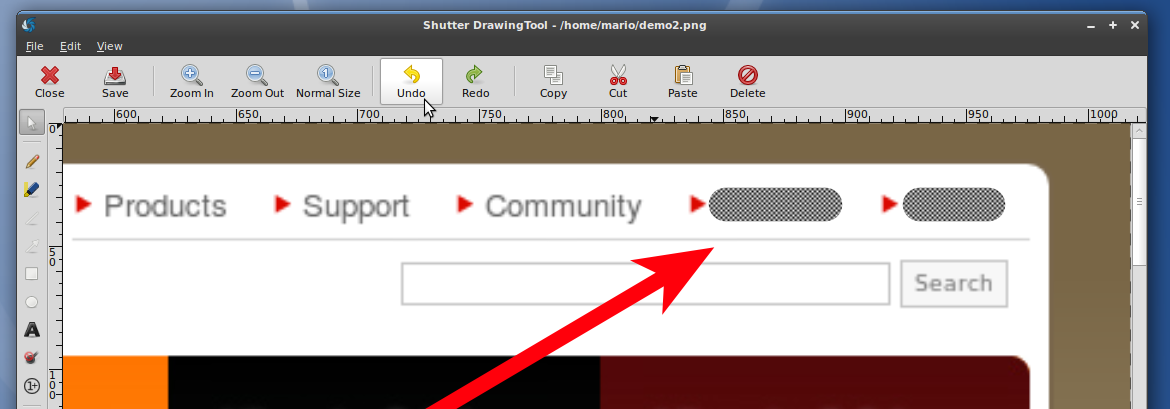 Shutters screenshot editor now features undo capability – making it much more forgiving against accidents, and allowing for easier experimentation. This also makes it a rather complete screenshot-oriented image editor, and as far as we know, the first of its kind on Linux
New tools in the editor
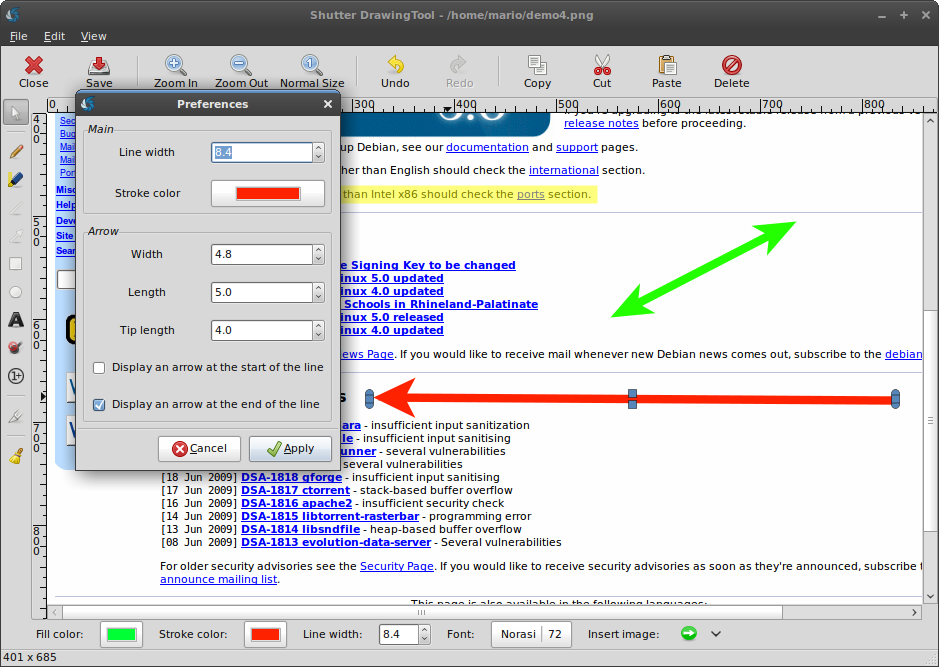
The editor also received several useful tools – arrow shape, highlighter, numbered tags, crop tool, and a resizable canvas.
The arrow is a tool of it’s own now – previously it was an image, which wasn’t convenient to access frequently and had some complications when using. Now it’s available on the left toolbar, and functions similarly to the line too.
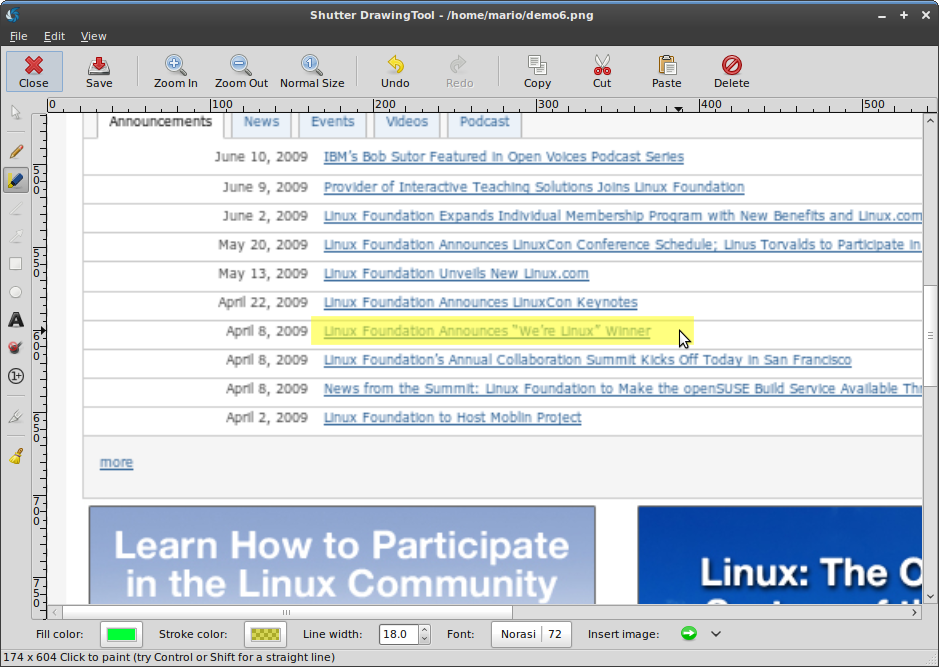
The highlighter tool, as it’s name implies, is useful for highlighting. While a pencil tool with a large line width, some transparency and a yellow color does the same job, it was inconvenient to switch the color setup from the standard to the ‘highlighting’ mode and back. Now the highlighter is a tool of it’s own, with a nice cursor, making it easier and faster to highlight. Big thanks to Richard Querin of the Inkscape Screencasters fame for providing us with the nice highlighter icon.
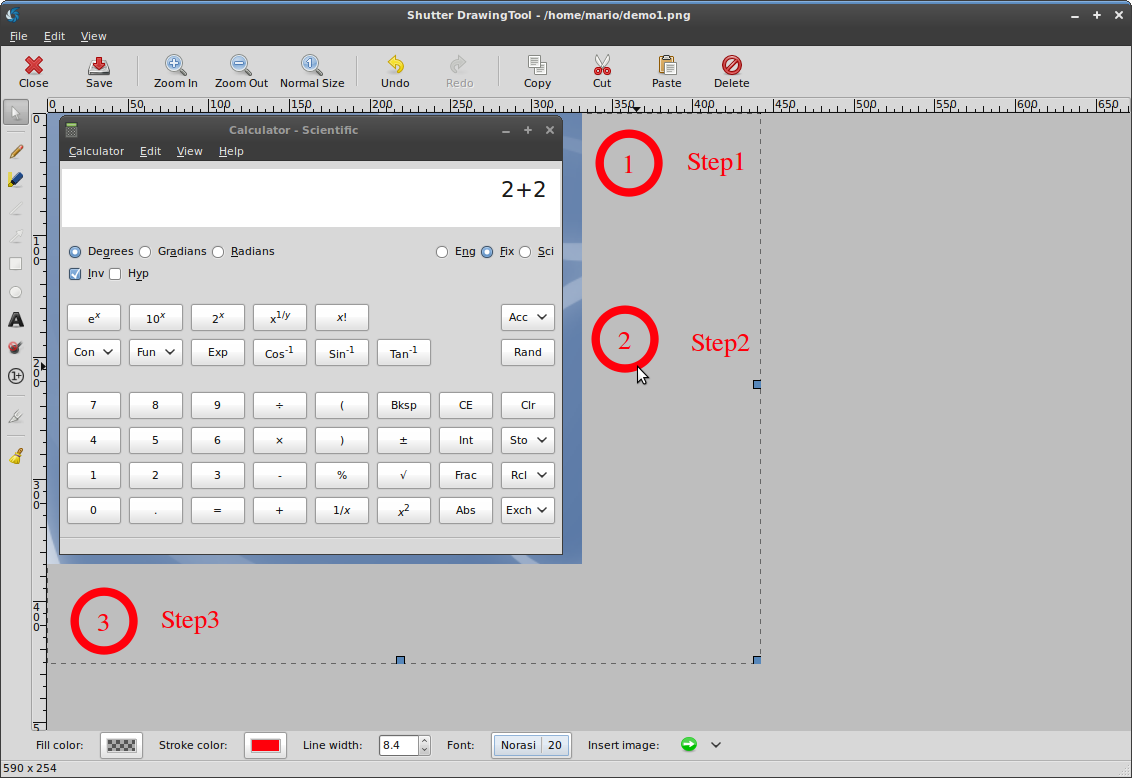
Numbered tags – ah, what Shutter was made originally for – aiding in documentation process. Numbered tags stamp a number (that’s auto-incremented each time you use it) on the screenshot, allowing you to clearly detail the steps needed to take in a graphical interface.
Crop tool allows you to crop your screenshot ala advanced selection tool for screen capture. You draw a box of the area you’d like to leave, crop, and everything outside of the box is removed with the canvas auto-sized to the new dimensions.

The canvas is now resizable – allowing you to extend it’s dimensions beyond the original screenshot resolution for more stuff, or sizing it down for less stuff. Do as you please! You are the king/queen.
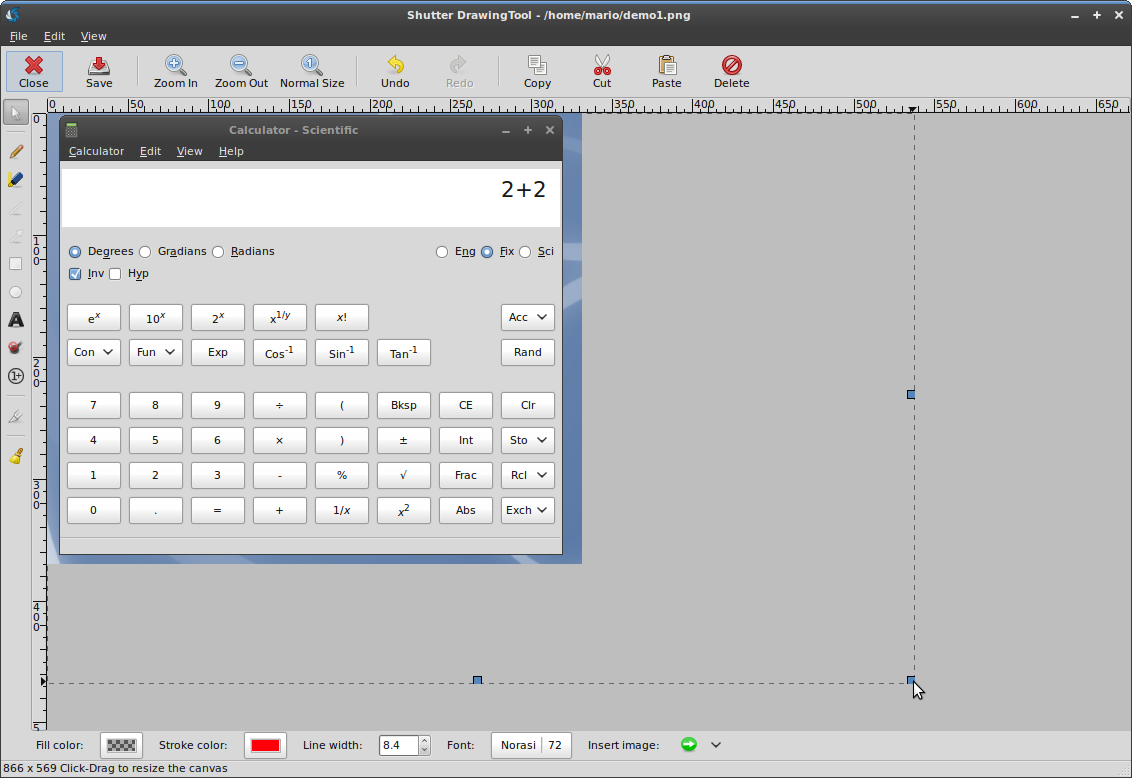
Besides that, the editor also received various improvements like a built-in fullscreen mode and an option to clear all the objects you’ve added. The ability open your recently used files has been added to the main window as well.
New plugins
That’s right! Now you’ve got more neat effects to apply to your screenshots.
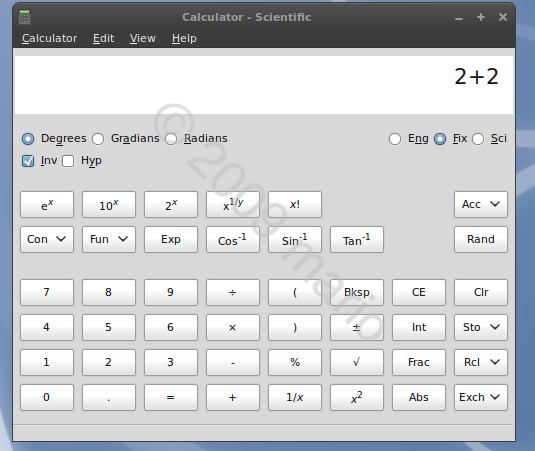
Watermark – quite a common function. Add your copyrights, location, project website on your screenshot – now without complex pixel manipulation and within Shutter.
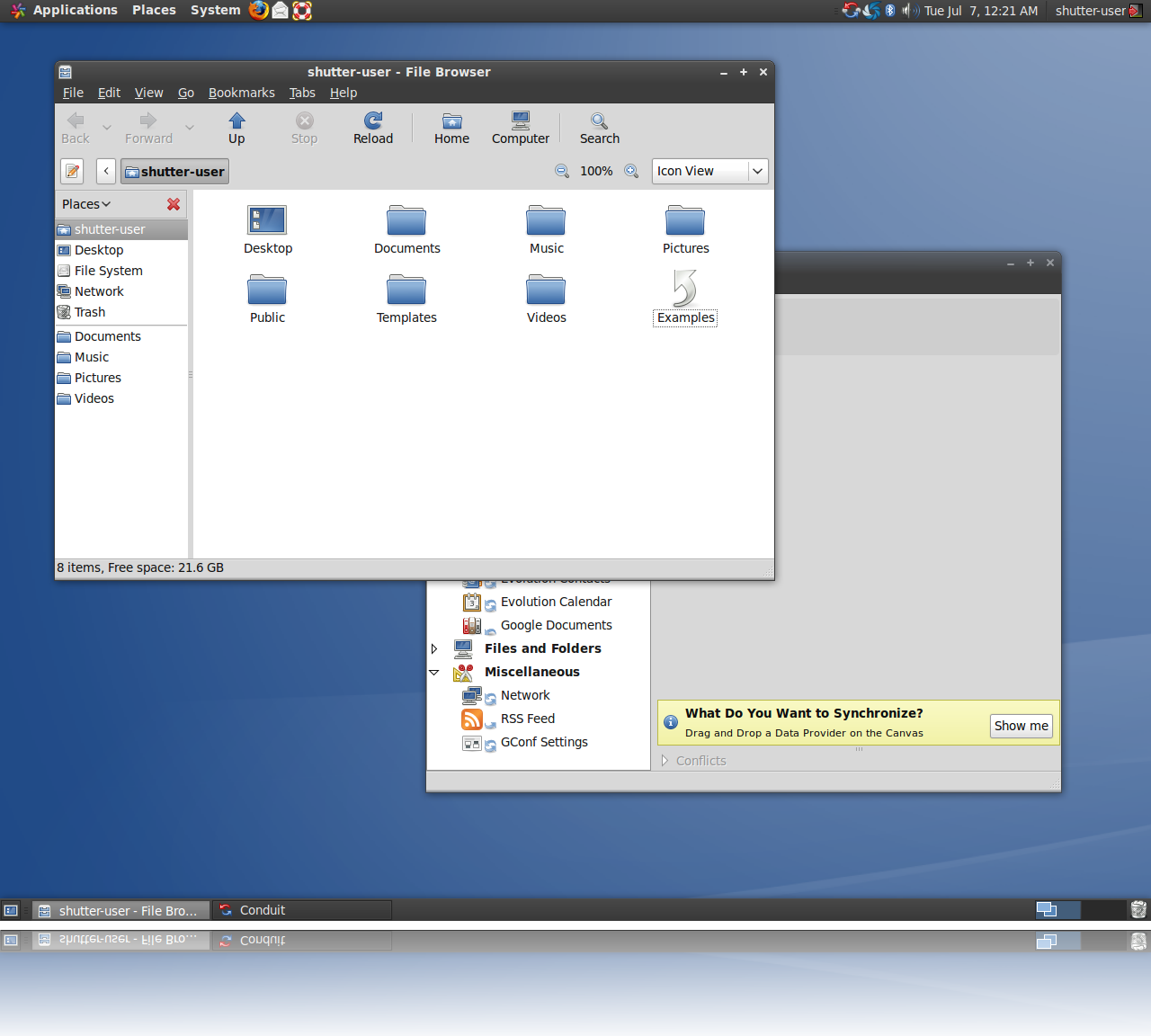
Reflection – applies a fading reflection at the bottom of the image, giving it a stylish look.
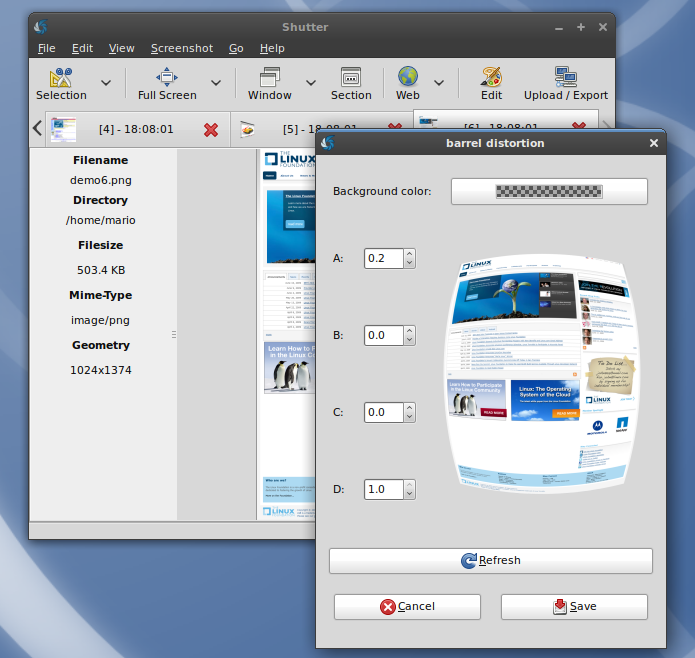
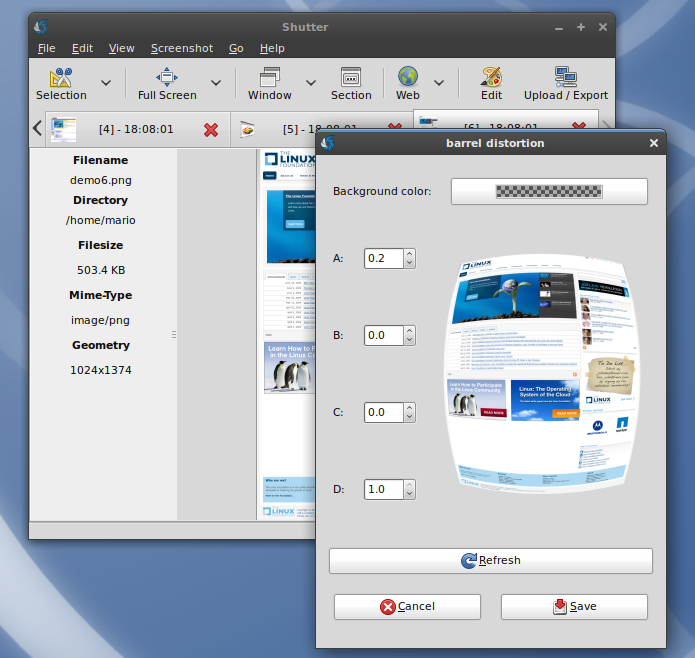
Distortion adds the “fish eye” effect by bulging out the middle of the image.
3d rotate – allows you to rotate the image on all three (x, y, z) axis in 3d. Add a new depth to your screenshots!

As with everything else, bugs were fixed and we’re already planning for the next version, 0.85. We hope you enjoy this release!
Detailed changelog is available here.
14 Comments
Trackbacks/Pingbacks
- Shutter 0.80 正式发布:功能大量增强 - [...] 官方网址:/2009/07/shutter-0-80-released-great-stuff-inside/(责任编辑:A6) Post a Comment [...]
Leave a Reply
Find us on Launchpad

Follow Us!


 News
News
- Reshared post from Ubuntu App Developers: 30. August 2012
- Shutter is one of the featured apps in the #Ubuntu Software Center! 30. August 2012
- Shutter 0.89.1 released! 15. August 2012
- Running openSUSE? Thanks to +Sascha Manns for the packaging work! 8. August 2012
- Thanks to +Joey-Elijah Sneddon for this nice review! 6. August 2012
- We are featured on +heise online (a very popular German language news portal)! Nice :) 3. August 2012
- Shutter 0.89 released! 2. August 2012
- Switching to a time-based development release strategy. There should be at least one release every two... 22. July 2012
- The next release will add support for application indicators when running Unity. Thanks to Hans Oesterholt... 22. July 2012
- See what other people think about Shutter. Awesome feedback - thanks! 28. June 2012
Screenshots
Support Us
If you like Shutter and find it useful, help keep it actively developed by clicking the donate button or sending me a gift from my Amazon wishlist. You can even flattr our thing!


@Romario
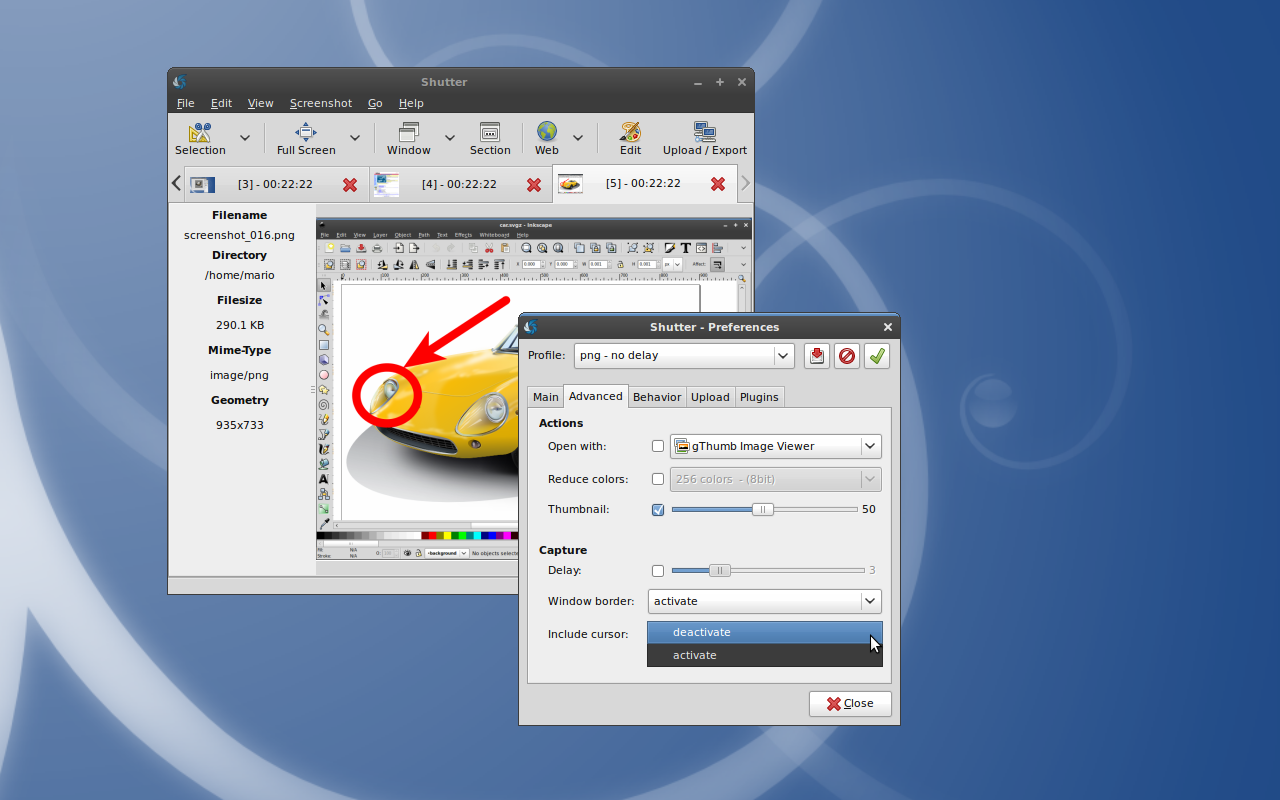
Thanks for the clarification. Didn’t think of checking in the preferences. I think it would be a bit more intuitive to have an icon on the tool bar for this feature. And a quick way to enable and disable time delay instead of opening preferences dialog each time to do so.
Shutter’s delay functionality works a little bit different from other screenshot tools. It works like this (selection mode in this example):
1) Set up a delay
http://www.ubuntu-pics.de/bild/10892/shutter___preferences_VJrw3S.png
2) Start selection tool and select a screen region
——Now the delay takes place——-
3) Now i can do anything i want, e.g. opening a menu or move the mouse cursor to the perfect position
——delay finished—————-
4) capture
This behavior is discussed here:
https://bugs.launchpad.net/shutter/+bug/341315
This is already there. You can use the built-in editor to crop the screenshot (see the feature description in the blog post above).
Heh, I was hasty in pressing the “Submit comment” button. Missed out in saying that I love using shutter. Kudos to you guys for developing such a useful tool.
This is a wonderful tool in a similar league as SnagIT. I have been using it to capture screenshots and I have been able to save time.
A suggestion – You should add a feature to take screenshots after a duration of time. This is a must have feature for any screen capture tool.
SnagIT allows you to use a timer to take a screenshot of an area on your screen after a duration of time.
Hope to see this feature in the next version of shutter.
Also looking forward to see a plugin for cropping images.